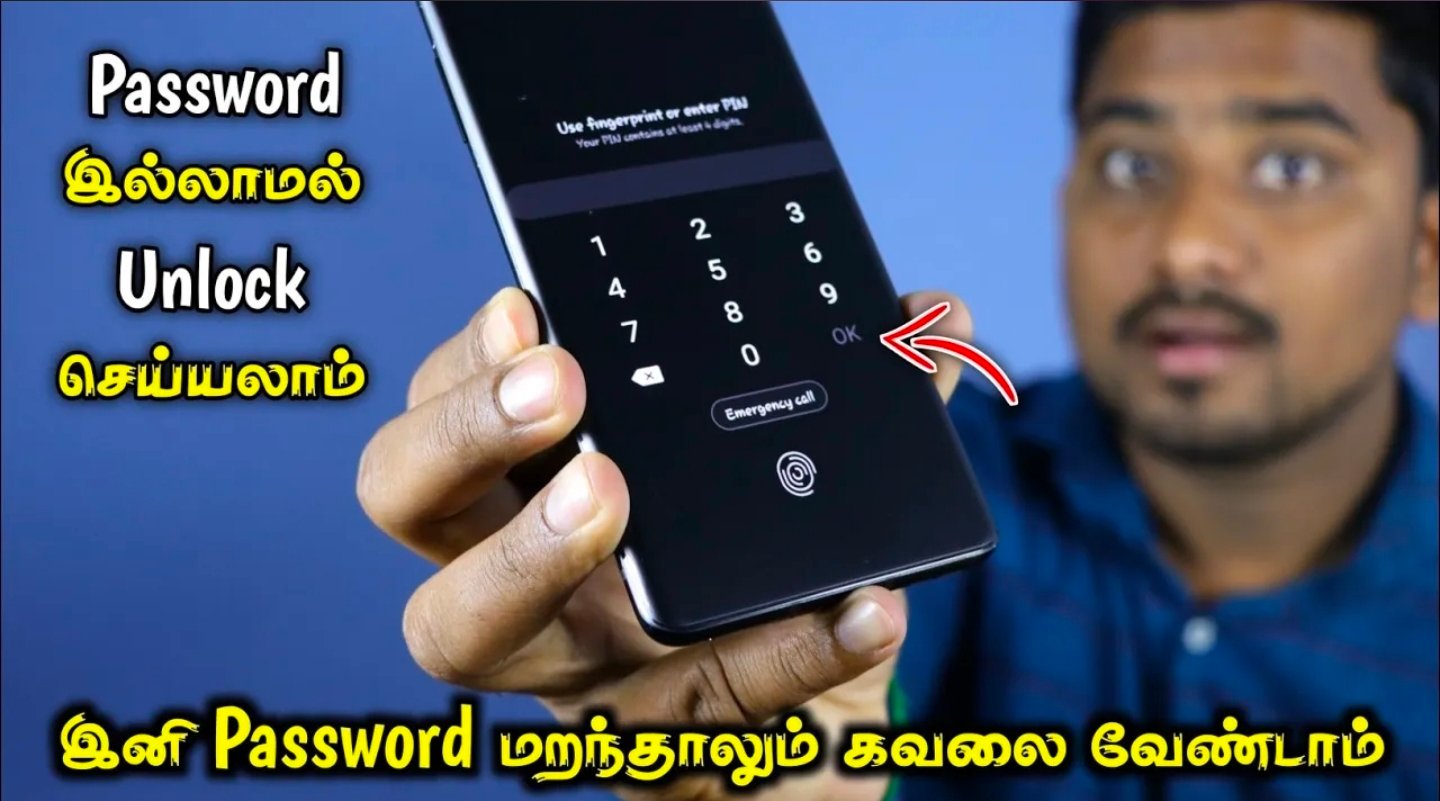
Remove Lock Screen Password
How to Remove Lock Screen Password Unlocking a mobile phone password typically necessitates official methods to prevent data loss or security vulnerabilities.
The appropriate approaches vary depending on whether the device is an Android or iOS model. It is always advisable to prioritize data backups when feasible.
Recovering data without loss presents a considerable challenge due to advanced encryption and security protocols. Official procedures frequently necessitate account verification or may entail the risk of data erasure, whereas third-party alternatives often come with notable disclaimers. There is no universally guaranteed method for data recovery that ensures complete safety across all situations.
Google Account Approach:
Following multiple unsuccessful password entries, one may select “Forgot pattern/PIN/password” to access the device using a linked Google account, provided the device is connected to the internet. This method is effective on some Android 12 and newer devices, but it might not be applicable to more recent versions with stricter security policies, and it requires prior synchronization with a Google account.
Samsung-Specific Alternative:
For recent alterations on Samsung devices (within a 72-hour timeframe), one can enter an incorrect PIN five times, then tap “Forgot PIN,” and subsequently use the previous lock code. This option is not viable beyond that specific window or on non-Samsung devices.
Advanced ADB Approach
Should USB debugging have been previously activated, one may connect the device to a personal computer and employ ADB commands, such as “adb shell rm /data/system/gesture.key,” to eliminate the lock file. This method necessitates a computer, ADB installation, and pre-enabled developer options, which are infrequently accessible after a lockout.
Third-Party Software
Programs like Dr.Fone or Android Unlocker assert the ability to remove locks without data loss via USB. However, their efficacy varies depending on the device model, often requiring root access or debugging, and carries the risk of device malfunction or malware. It is advisable to exercise caution with unverified YouTube methods, as they frequently result in data resets.
Significant Constraints
On Android 12 and later versions, data linked to your lock screen is encrypted, rendering bypass attempts unreliable without the necessary credentials. A factory reset remains the most dependable official solution but will erase all data. If feasible, consider utilizing Google’s Find My Device remotely as a primary option. Prior backups via Google Drive are highly recommended
Android Methods
Google’s Find My Device service offers the capability to remotely lock a device with a temporary password or to erase it if it is connected to the internet.
Should an incorrect password be entered multiple times, a “Forgot Pattern” option may appear, allowing the use of your Google account credentials. For Samsung devices, the Find My Mobile service provides similar remote unlock functionalities.
iOS Methods
For iOS devices, a computer with iTunes or Finder is required to access recovery mode, which will erase all data and restore from a backup. There is no method to unlock an iOS device without a password that does not involve erasing its contents.
Data Loss Warning
While third-party tools such as Android Phone Unlocker or Dr.Fone claim to remove locks without data loss, these often require USB debugging and are associated with potential risks. A factory reset performed via recovery mode will invariably wipe the phone’s data.
